SketchPad – Doodle & Draw
- 4.5
- Rating
- 1.00M
- Installs
- Free
- Price
 Analysis by App-foxy
I opened SketchPad expecting a lightweight place to draw without the pressure of a full professional art suite. That is exactly where it makes the most sense: quick visual thinking, loose doodles, rough layouts, and small creative sessions that begin with an idea rather than a prepared project. Developed by Kaffeine Software, this free Art & Design app has grown into a familiar option for casual mobile drawing, with a 4.3 average from around 2.9 thousand ratings and more than 1 million installs.
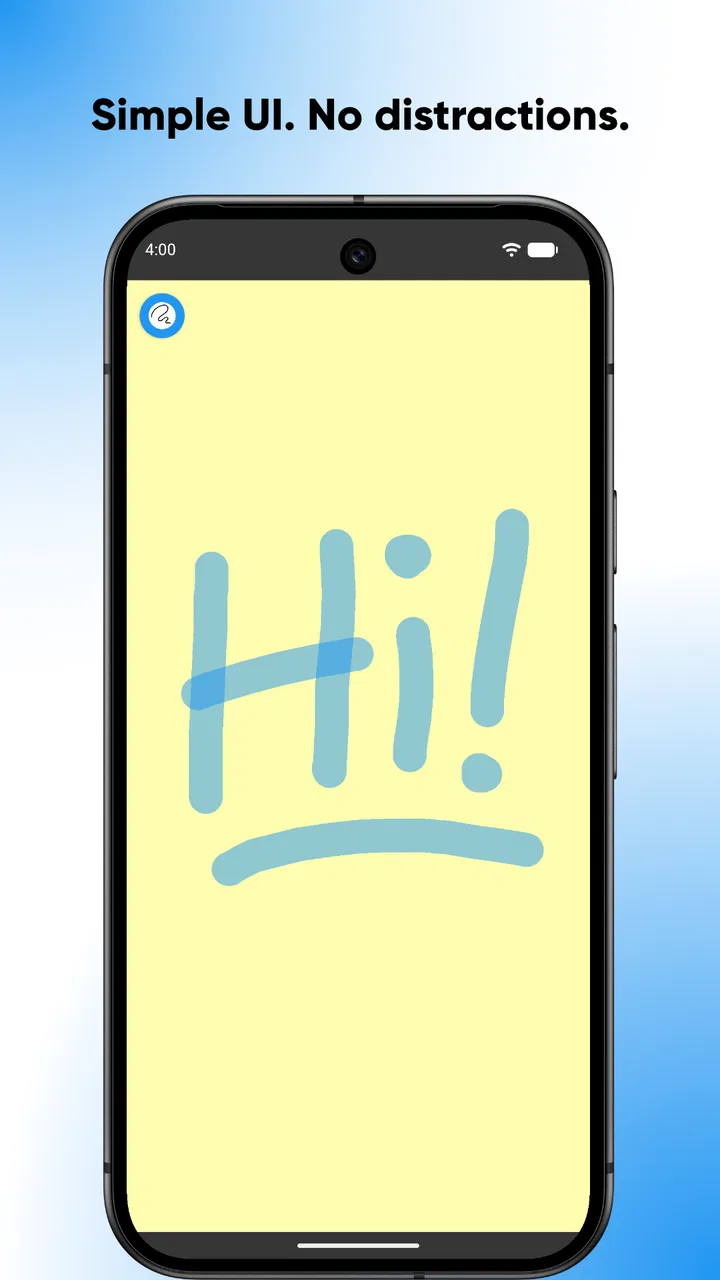
My first impression was that its appeal comes from immediacy. There is no need to treat a blank canvas like a formal illustration assignment. I can sketch a shape, erase it, redraw it, and keep moving. The app’s identity is built around that relaxed loop, which makes it especially comfortable for people who want to scribble during a pause in the day, capture a visual thought before it disappears, or let a child experiment with drawing on a phone or tablet.
That simplicity is also the key to judging it fairly. This is not the app I would choose when I need a carefully managed illustration pipeline, advanced image editing, or a highly controlled production environment. It is better understood as a fast digital notepad for marks and ideas. Once I used it with that expectation, the workflow became much clearer: start with a rough thought, develop it directly on the screen, decide whether it is worth keeping, and then move it onward only if the result needs a life outside the app.
You May Also Like

 Blood Strike: 2.5 Anniversary
Blood Strike’s Loadouts Turn Every Drop Into a Tactical Gamble
A close look at Blood Strike’s custom loadouts: how fast access to signature weapons reshapes its battle royale rhythm, rewards preparation, and narrows the gap between fights.

 Pandora - Music & Podcasts
Pandora’s Music Is Easy to Start, but Harder to Recover
Pandora’s strength is its low-effort path from a seed to a station. Its weak spot is how much confidence it asks you to place in connection, setup, and quiet recovery.

 8 Ball Pool
 Is Built on Rivalries, Rematches, and Routine
A close look at the rivalries, rematches, shared routines, and unanswered safety questions that turn a quick pool match into a persistent mobile community.

 Samsung Music
’s Quiet Strength Is Playing What You Already Own
Its reach comes less from spectacle than from dependable access to a personal library. That simplicity is both the app’s strongest retention engine and its ceiling.

 AccuWeather: Weather Radar
AccuWeather Review: A Quick, Clear Forecast for Everyday Decisions
For everyday plans, the best forecast is the one you can understand quickly. AccuWeather makes rain timing, radar, and local conditions easy to act on, with a few trade-offs.

 Hill Climb Racing
Why Hill Climb Racing Still Turns Crashes Into One More Run
A tiny car, a bumpy hill and one more upgrade: Hill Climb Racing keeps resurfacing because its simple chaos makes every near-miss feel personal.
More From Our News Desk



From a blank screen to a usable sketch
I use this section to focus on the small choices that make a blank canvas useful: starting with a clear purpose, keeping early marks loose, and deciding whether a sketch is meant to solve a problem or simply invite play. That distinction also helps set realistic expectations for how quickly the app should feel in everyday use.
Starting with the right kind of idea
The most useful way to begin is not by asking whether the drawing will look finished. I get better results when I enter with a small objective: block out the shape of a room, test a character pose, draw a reminder for a later project, or simply warm up my hand. A mobile screen encourages short sessions, and SketchPad works best when I respect that rather than trying to force it into the role of a desktop studio.
For example, if I am planning a shelf arrangement, I can make a quick front-facing sketch and mark the approximate position of the objects. The drawing does not need polished perspective to be useful. Its value is that the visual relationship becomes easier to understand than a paragraph of notes. I can also use the same approach for a logo idea, a handwritten card concept, or a rough composition before recreating it in a more specialized tool.
The Everyone content rating makes the app approachable for general household use, and I can see why it suits both adults looking for a casual creative outlet and younger users learning how digital drawing feels. Still, “easy to start” should not be confused with “automatically easy to master.” Drawing with a finger has its own awkwardness, especially when the screen is small. A stylus or a larger device can make the experience more comfortable, but the app remains most convincing when the goal is exploration rather than precision.
A practical drawing loop
My usual flow is deliberately simple. I begin with the broadest shapes, pause to see whether the idea reads correctly, and only then add smaller marks. This prevents a common mobile-drawing mistake: spending time on details before the main proportions work. If the foundation feels wrong, I undo or erase early instead of trying to rescue an overloaded sketch.
That habit is more important here than chasing a perfect line. A quick drawing app rewards decisions, not hesitation. I often make several rough attempts rather than polishing the first one. The first pass tells me what the idea needs; the second pass usually tells me whether it is worth developing. This is a more efficient workflow than opening a heavyweight art application, setting up a document, and becoming distracted by tools before I have decided what I want to make.
One useful technique is to treat the canvas as a sequence of visual notes. I can place a few versions of a symbol, test alternate arrangements, or draw arrows between parts of a concept. That turns the app into a thinking surface instead of a place reserved for finished pictures. It is particularly handy for people who think spatially but do not want to maintain a separate notebook and drawing application.
I also recommend leaving breathing room around the first marks. On a phone, crowded sketches become difficult to edit because every new stroke competes with the existing ones. Starting smaller and adding space around the main subject gives me more freedom to revise. This is a modest workflow adjustment, but it makes the difference between a canvas that feels playful and one that feels cramped.
Turning rough marks into a decision
The important outcome is not always an attractive image. Sometimes the sketch answers a practical question: does this layout fit, does this pose communicate the action, or does this arrangement feel balanced? I judge the result by whether it helps me decide what to do next. That standard is kinder and more useful than comparing a casual phone drawing with finished digital artwork.
When the sketch works, I can use it as a reference for another project or show it to someone who needs to understand the idea. When it fails, it still has value because it exposes the weak point quickly. I can discard it without having invested the time and concentration demanded by a larger application. That low commitment is one of the strongest reasons to keep a tool like this available.
For a student, the result might be a visual study aid. For a designer, it might be an early composition. For a parent and child, it might simply be a shared drawing session. In each case, the app succeeds when it shortens the distance between “I have an idea” and “I can see it.”
Moving the sketch beyond the canvas
A drawing becomes more useful when it can be handed to another person or carried into the next stage of a project. My practical rule is to decide early whether the canvas is disposable or important. A disposable doodle can remain a moment of experimentation. A planning sketch deserves a little more care before I leave it, because a rough image may later become the only reminder of why a particular idea seemed promising.
For a real everyday scenario, imagine preparing a small room makeover. I can sketch the furniture positions during a conversation, use the image to explain the arrangement, and then recreate the approved plan in a measurement-focused tool. SketchPad handles the communication step well because the drawing is immediate and personal. It is not the right place to establish exact dimensions or produce a construction-ready plan, so the handoff should happen before anyone treats the doodle as a technical document.
The same distinction matters for creative work. A character thumbnail can pass to an illustration app, a rough icon can be rebuilt as a clean graphic, and a storyboard idea can be discussed with a collaborator. In each case, the sketch is a bridge. Its job is to carry the idea clearly enough that the next tool or person can continue it.
I would not rely on a quick sketch as the only copy of something valuable without checking how I intend to preserve it. A casual drawing session and a dependable archive are different needs. If the image is part of schoolwork, a client discussion, or a personal project, I treat the handoff as a separate step rather than assuming that the canvas itself is a complete storage system.
Where the workflow starts to strain
The same directness that makes the app welcoming can become limiting when a drawing needs careful correction. Finger input is less precise than a mouse or stylus, and a small screen leaves less room for controlled gestures. I sometimes find myself zooming mentally rather than physically, trying to judge whether a line is clean enough while my hand covers part of the area I am working on.
That friction is acceptable for loose work but frustrating for detailed line art. If I need exact curves, repeated elements, measured alignment, or a clean final asset, I would move to a specialized alternative sooner rather than later. A full illustration app is better for layered editing and controlled brushes, while a vector tool is more suitable for logos and scalable shapes. A note-taking app may be better for a meeting where handwriting and text need equal importance.
There is also a creative limitation in the very idea of a minimal sketchpad: it does not provide the same depth as a professional workspace. People who already know they need advanced brush control, extensive layer management, or a carefully organized export process may feel they have outgrown it before they begin. Installing it is easy, but choosing it for the wrong job creates unnecessary frustration.
The free price makes experimentation painless, although optional in-app purchases cost $4.99 per item. I see that as a reason to try the basic experience first and decide whether the extra value matches the way I draw. I would not pay simply because a feature exists; I would pay only if it removes a repeated obstacle in my own workflow. For occasional doodling, the free starting point is the more sensible test.
Who should use it, and who should pass
I would recommend SketchPad to someone who wants a low-pressure drawing space on a compatible device. It is a good fit for quick concepting, visual journaling, informal practice, simple family activities, and those moments when opening a large creative program feels like too much effort. The current version is 3.0.2, and support begins with Android 5.0, which makes it accessible across a broad range of Android devices.
It is also useful for beginners who need to discover whether drawing on a touchscreen feels natural before committing to a more complex application. That trial matters. Many people do not need a studio full of controls; they need a place where making the first mark feels easy. A small, repeatable habit can be more valuable than a sophisticated tool that remains unopened.
I would tell professional illustrators, technical designers, and anyone preparing print-ready artwork to look elsewhere for the main production stage. They may still enjoy this app for thumbnails, but the final work will likely need a more specialized environment. The same goes for users who want a structured note system with searchable text, document organization, or detailed collaboration features. A sketchpad can support those workflows, but it cannot replace every tool around them.
My final workflow verdict
After using it as a complete path from idea to handoff, I think the strongest result is a fast visual draft that helps me think or communicate. The app does not try to turn every scribble into a finished artwork, and that restraint is part of its charm. I can begin with almost no ceremony, make a few decisions on the canvas, and leave with something that either guides the next step or proves that an idea needs changing.
The trade-off is clear: convenience comes before precision, and spontaneity comes before deep project management. When I remember that, the limitations feel reasonable rather than surprising. The app is not the destination for every drawing; it is the quick first stop where an idea becomes visible.
For anyone who wants a free, approachable Art & Design app from Kaffeine Software, I think it is worth trying, especially if the intended use is casual sketching rather than professional finishing. Its age rating is Everyone, and its broad install base suggests that it has found an audience among people who value a simple creative outlet. The best reason to keep it installed is not polished artwork, but the speed of getting an unfinished idea out of your head and onto a canvas.
FAQs for SketchPad – Doodle & Draw
01What features does SketchPad – Doodle & Draw offer?
SketchPad – Doodle & Draw provides a wide array of features, including various brushes, colors, and layers to enhance your doodling experience. The app also supports multiple canvas sizes and offers the ability to export your creations in high-resolution formats. Additionally, it includes tools for adding text, shapes, and stickers to your artwork.
02Is SketchPad – Doodle & Draw suitable for professional artists?
While SketchPad – Doodle & Draw is primarily designed for casual drawing and doodling, it offers enough tools and functionalities to satisfy professional artists looking for a mobile sketching solution. The app supports pressure sensitivity for styluses and offers advanced editing options, making it a versatile choice for artists of all levels.
03Does SketchPad – Doodle & Draw require an internet connection?
No, SketchPad – Doodle & Draw does not require an internet connection for basic drawing and editing functionalities. However, an internet connection is necessary for certain features, such as downloading additional brush packs, syncing your work to the cloud, or sharing your artwork on social media platforms.
04Are there any in-app purchases in SketchPad – Doodle & Draw?
Yes, while SketchPad – Doodle & Draw is free to download, it offers in-app purchases to unlock additional features. These include premium brushes, expanded color palettes, and exclusive canvas templates. Users can also opt for a subscription model to remove ads and gain access to all premium content.
05Is SketchPad – Doodle & Draw available on both Android and iOS?
Yes, SketchPad – Doodle & Draw is available for both Android and iOS devices. The app is optimized for a wide range of smartphones and tablets, ensuring a seamless experience across platforms. Users can download the app from Google Play Store for Android devices and the Apple App Store for iOS devices.
Pros
- Intuitive interface for easy use.
- Wide variety of drawing tools.
- Supports multi-layer editing.
- Offline functionality available.
- Smooth and responsive performance.
Cons
- Limited color palette options.
- No text tool integration.
- Ads can be intrusive at times.
- Saving options are somewhat limited.
- Lacks advanced editing features.

SketchPad – Doodle & Draw
Gallery